Up and Down to move, Enter to open. Searches every page, tip, table and command.
Find anything the guild owns, request it in one click, and keep track of your own items, wishlist and crafts.
Every box that takes an item suggests items as you type: the icon, the name in its quality color, and how many the guild and you have. Up/Down and Enter or Tab pick, Escape closes, and typos are forgiven. Shift-clicking an item or dragging it into the box works too.
There's no item database to install. After login Warchest quietly learns item names from the game itself (about 40 a second, paused in combat, once per patch), plus everything it sees as you play: profession windows, the auction house, vendors, loot, and links in chat.
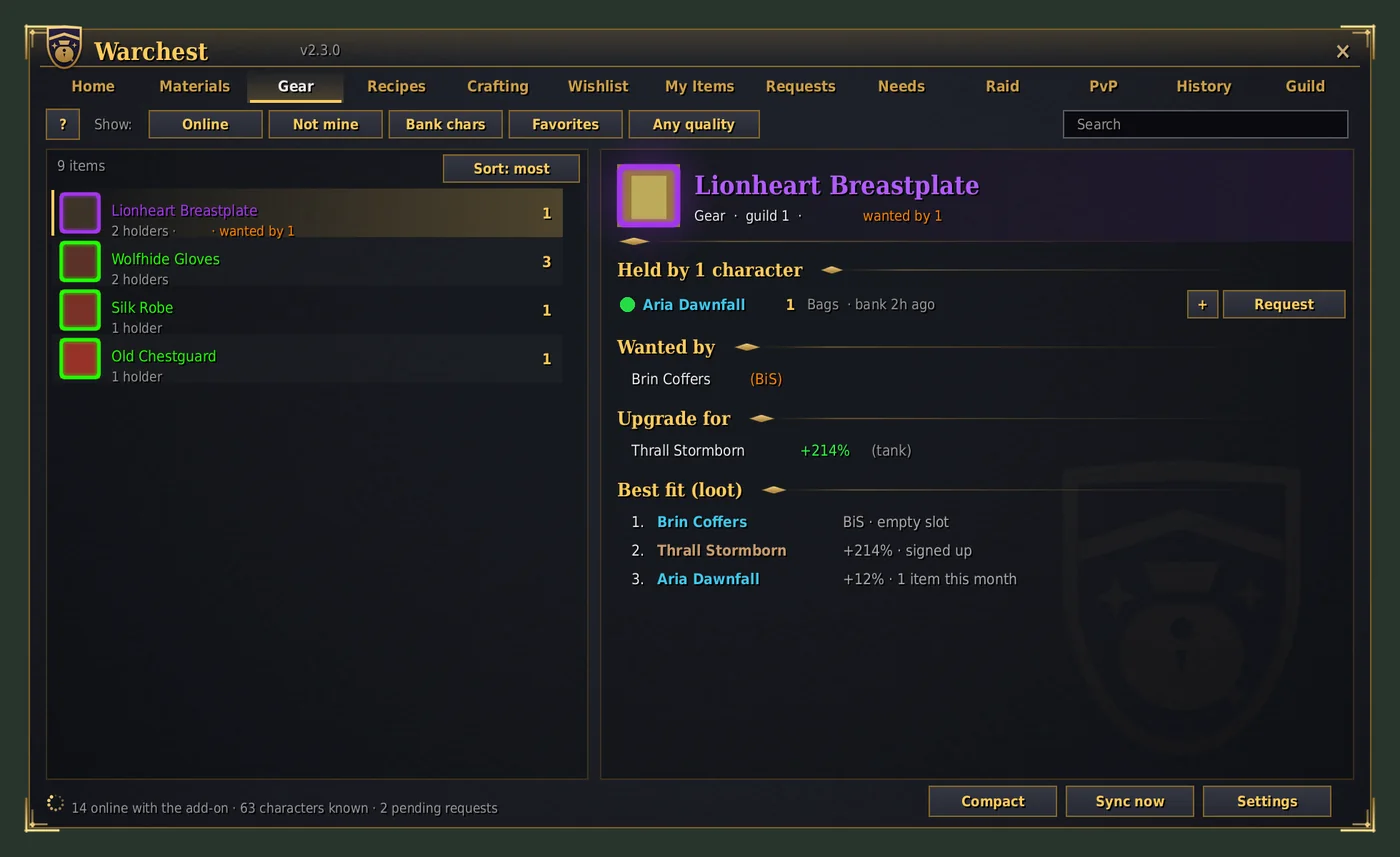
Press + instead of Request to collect items from several holders, then Requests tab > Send all: one mail per holder. Shift-click + to take everything someone has. For a craft, Request all on its shopping list asks the best holders for every material you're short.
Gear also shows Upgrade for, recipes show Learned by / Unlearned by, and officers see a Loot: best-fit line. Each line can be turned off; Compact tooltips hide the guild lines until you hold Shift.
At a mailbox, Send requested items fills in the mail and attaches the exact amount from your bags, splitting stacks for you. You press Send; the request is marked sent. Opening your bank reminds you of requested items stored there.
Every item on all your characters with its exact location. Right-click one to mail it to another of your characters. /wc find thorium does the same in chat.
Add items by typing, shift-clicking or dragging; pick a priority: BiS Normal Low. Holders see "Wanted by" on their tooltips, and you're told when a guildmate picks one up. /wc want thorium bar 3 adds it as BiS.
Everything guild members can craft, who can, their skill, and their cooldowns. Ask to craft sends a craft request that moves through accepted → materials received → crafting → sent.
If you know a recipe, its page compares the materials you have with what the guild has. Request all asks the best holders for everything you're short, in one go.
Your characters link themselves: each add-on publishes a random account token, so characters on the same account find each other. The main is the one you choose (Settings > Sharing, or /wc main Thrall), else your highest level.
Guild notes work too: Alt: Thrall Stormborn in an alt's public or officer note. Officers can force a link with /wc link Alt Name, Main Name. Officer fixes beat notes, and notes beat the automatic link.
/wc cd lists who has profession cooldowns ready. Recipe tooltips show who already knows it and who could still learn it, matched by profession and skill.
Your role for upgrade checks follows your specialization; pick one in Settings if you'd rather fix it. Upgrade checks compare class rules, level and role-weighted stats with what the character wears, and need at least +5% to show.
